Video Templates on iOS
Templates let users create stunning videos quickly and easily using predefined sets of effects, transitions, and music. All it takes to make a shareable piece is changing the placeholders. With templates, even people who are new to video editing or just lack time can make impressive content in minutes.
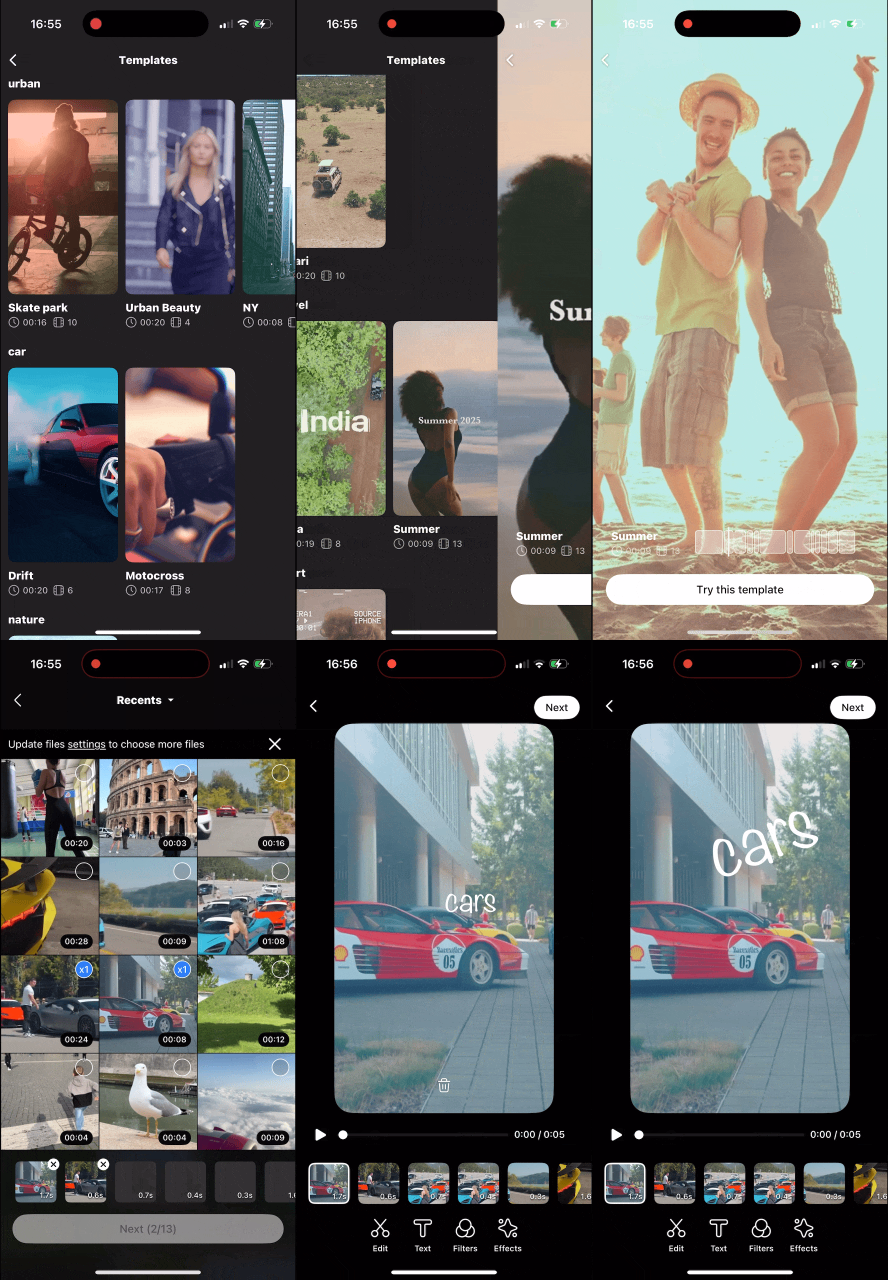
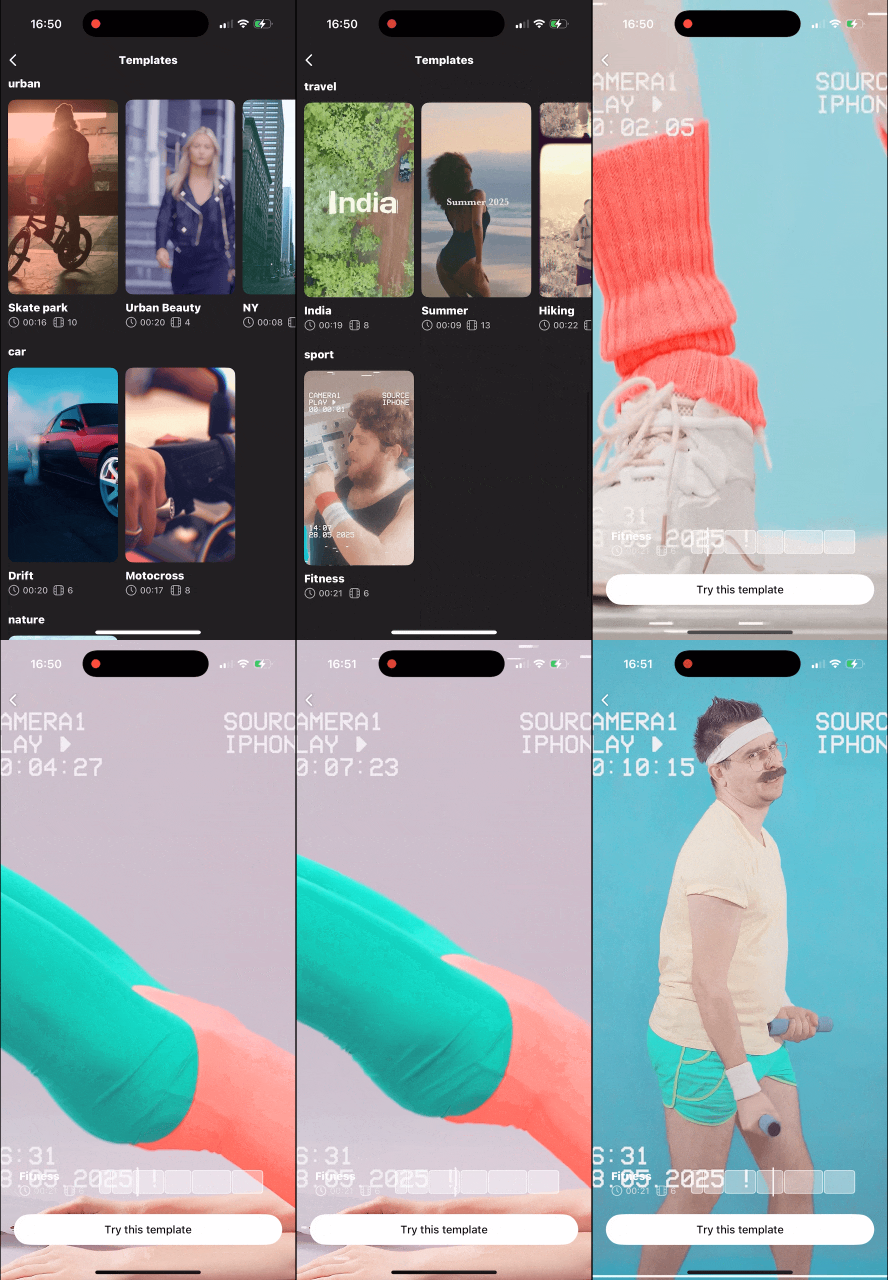
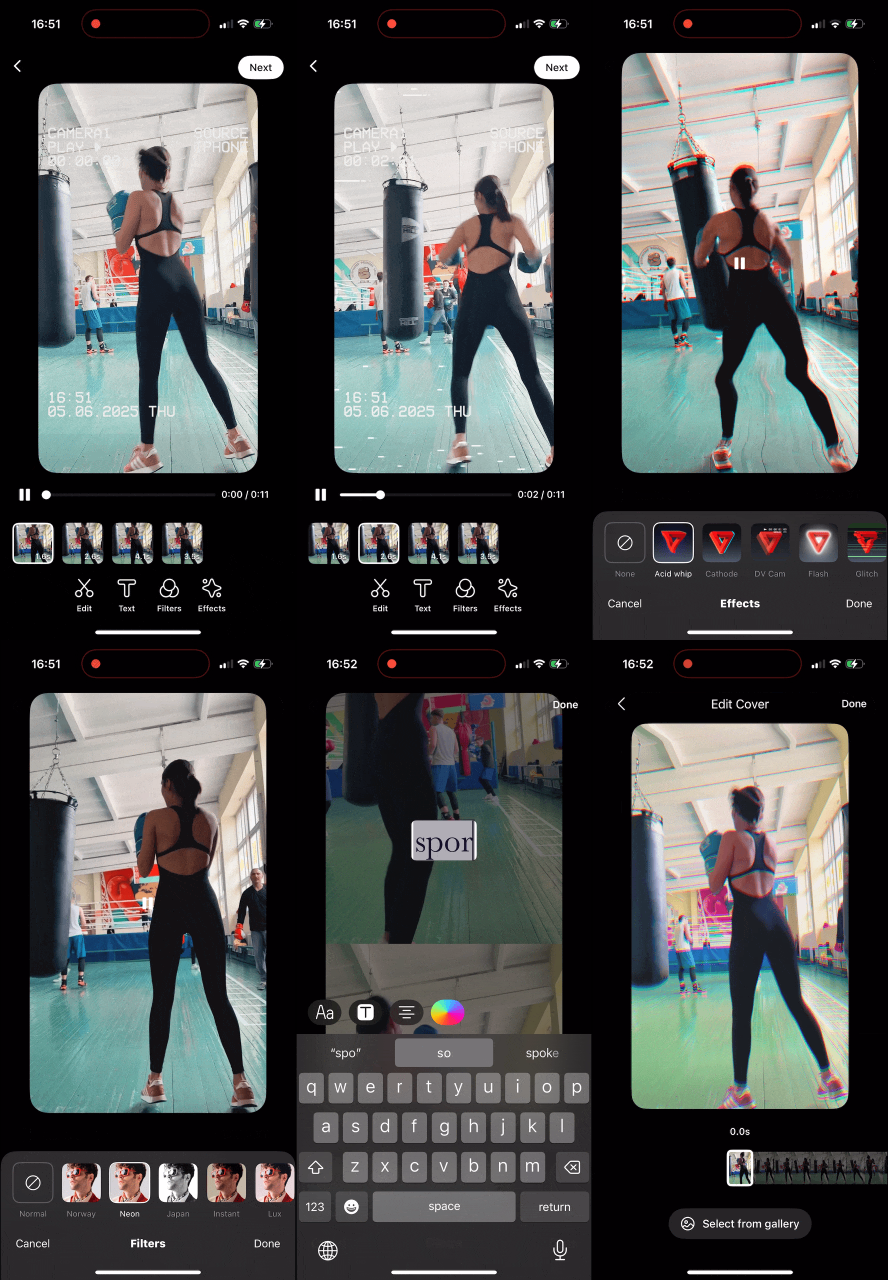
The Video Templates is not enabled by default. Contact Banuba representatives to know more.
Launch Video Templates
Use the .videoTemplates entry point in VideoEditorLaunchConfig to launch the Video
Editor SDK from Video templates.
let launchConfiguration = VideoEditorLaunchConfig(
     entryPoint: .videoTemplates,
     hostController: self,
     animated: true
)

videoEditorSDK.presentVideoEditor(
     withLaunchConfiguration: launchConfiguration,
     completion: nil
)
Setup Templates
Templates source is set via the catalogSource property of videoTemplatesConfiguration. Two options are available.
Static Catalog
.staticCatalog
The same approach as the previous url property:
let catalogURL = URL(string: "https://.../response.json")!
config.videoTemplatesConfiguration.catalogSource = .staticCatalog(catalogURL)
.templateStore
Load templates from Banuba Templates Service. This option allows to publish new templates created in Template Builder as well.
Requires a clientSecret value provided by Banuba representative.
config.videoTemplatesConfiguration.catalogSource = .templateStore(
    TemplateStoreConfiguration(
        clientSecret: "YOUR_TEMPLATE_STORE_CLIENT_SECRET"
    )
)
Migration from url to catalogSource
Replace url assignments with .staticCatalog(url) or switch to .templateStore(...).
// Before
config.videoTemplatesConfiguration.url = URL(string: "https://…/response.json")!

// After — static catalog
config.videoTemplatesConfiguration.catalogSource = .staticCatalog(
    URL(string: "https://…/response.json")!
)

// After — templateStore
config.videoTemplatesConfiguration.catalogSource = .templateStore(
    .init(environment: .production, clientSecret: "…")
)
Template Builder
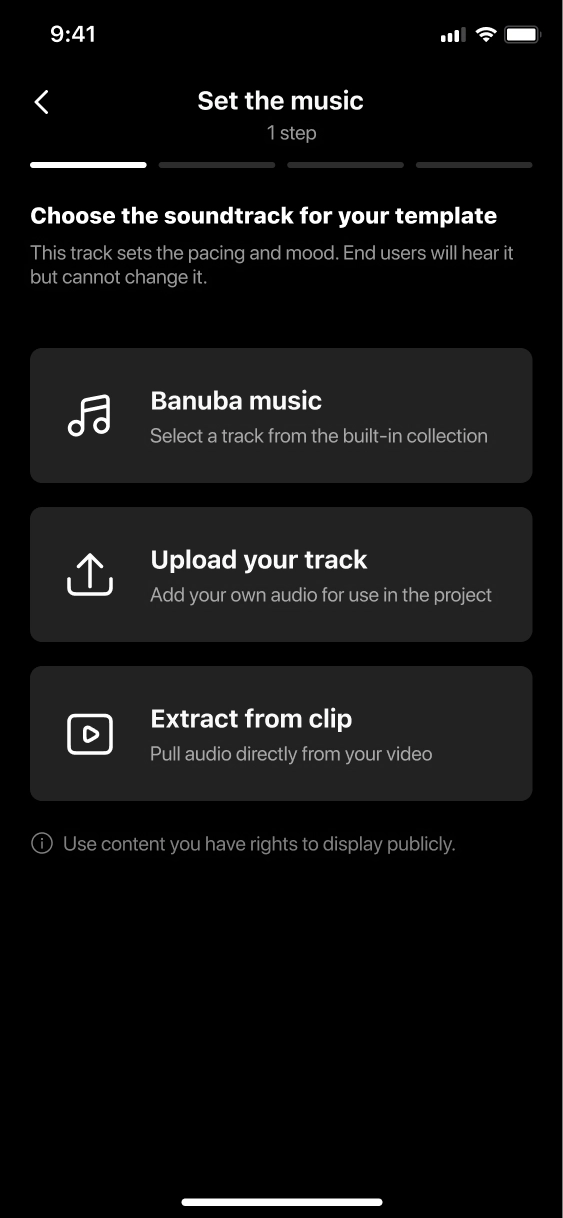
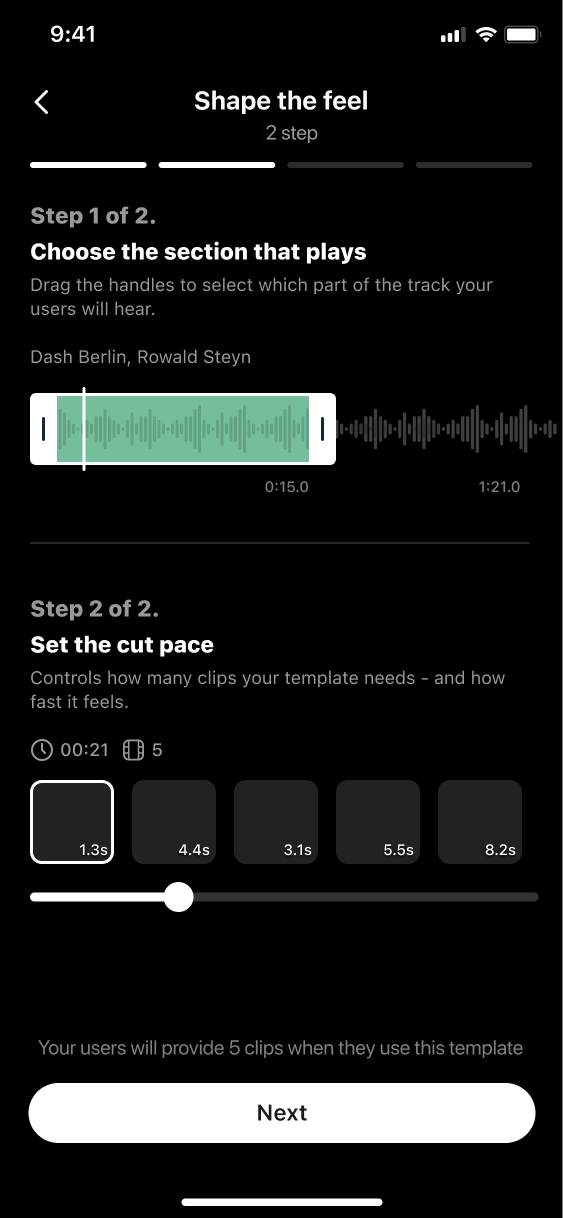
This feature is currently available on iOS only (starting from version 1.51.3).
Access requires a specific license token feature. Please contact your Banuba representative to enable it.
Template Builder requires .templateStore set in videoTemplatesConfiguration.catalogSource.
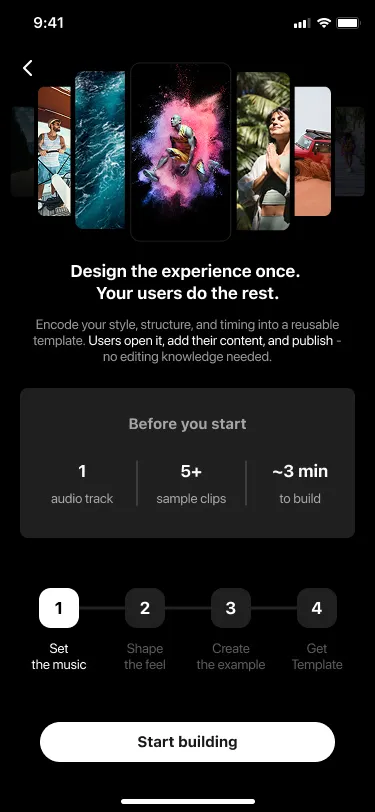
Template Builder allows users to create and publish custom video templates with transitions, effects, music, and text. Published templates appear in the templates gallery for all users in your app.
The Banuba Video Editor SDK presents Template Builder modally on top of your host screen — you control when to open it (for example, from a "Create template" button).
// 1. Create SDK instance
let videoEditor = BanubaVideoEditor(
    token: "YOUR_LICENSE_TOKEN",
    configuration: config,
    externalViewControllerFactory: nil
)

// 2. Open Template Builder
videoEditor.presentTemplatesCreator(
    from: hostViewController,
    animated: true,
    completion: nil
)
Key Features
- No-Code Template Creation: Client teams build branded video templates in minutes without engineering support.
- Flexible Parameters: Define music, transitions, clip lengths, FX, text, and metadata tags.
- Fillable Media Slots: Set dedicated media placeholders for end-users to insert their own videos.
- Publish & Distribute: Publish templates so they appear in the gallery for all app users.
Terms of Use URL
The Template Builder includes a confirmation step before a template is published. At this step, the user sees a message similar to:
«By publishing, you confirm that your content complies with the Terms of Use and does not infringe third-party rights.»
The Terms of Use link in that message leads to a page where you define the full legal terms that apply to content created and published by your team members using the Template Builder. The URL must point to a publicly accessible web page and must be valid and reachable.
var config = VideoEditorConfig()

guard let termsURL = URL(string: "https://example.com/terms") else {
    fatalError("Invalid Terms of Use URL")
}

config.videoTemplatesConfiguration
    .templateBuilderConfiguration
    .termsOfUseURL = termsURL
Localized Strings
Add or override the following keys in your Localizable.strings to customize Templates and Template
Builder UI text:
// MARK: - Templates
"BanubaVideoEditor.VideoTemplates.serviceUnavailableTitle" = "Service is not available";
"BanubaVideoEditor.VideoTemplates.noTemplatesFound" = "No templates found";