Build a Face AR App in Minutes with AI


 Quick Start ~3 min
For developers who already have Node.js and Claude Code installed. Copy each command and run it in your terminal.
Install Banuba AI Skills:
npx skills add Banuba/ai-skills -a claude-code --all --yesStart Claude Code:
claudeFill out the form to receive a free trial license key:
Get a Free Trial License KeyBuild your Face AR demo. Copy this prompt and paste it into Claude Code:
/far-general Build a Face AR camera for Web with beauty filters, face effects, and a virtual background. Use sensible defaults and create a working demo. Banuba license key: [paste your license key]Claude Code can ask follow-up questions later, but you should not need to choose a use case before installing and testing the skill.
Run your app. Follow the command provided by Claude Code. It will usually look similar to:
npm install
npm run devOpen the local browser link shown in the terminal.

🎉 Your Face AR camera is running.
Need to install Node.js or Claude Code first? See Start from Scratch below →
What Can I Build?
Every prompt starts the same skill. Not sure which to pick? Start with Videocall.
 Preview coming soon
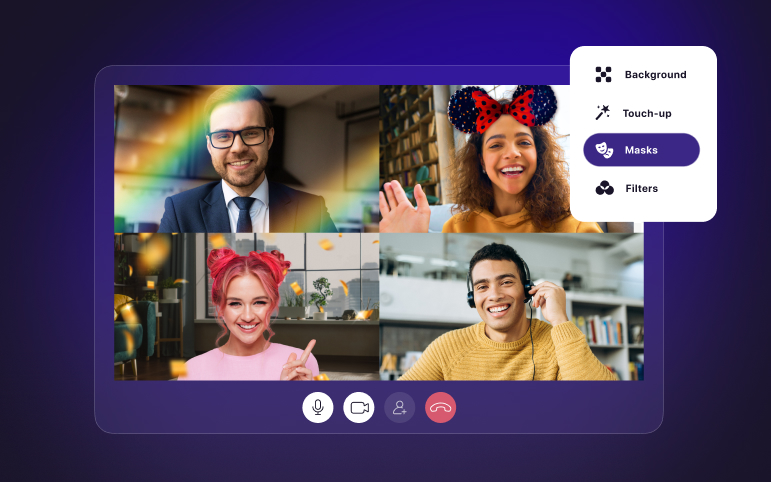
Add Face AR effects and virtual backgrounds to a Web video-call experience.
Copy the prompt, paste it into Claude Code, replace [paste your token] with your Banuba license key, and press Enter.
Step-by-step setup ~15 min
Steps
Follow the steps in order. Each one ends with a check you can confirm before moving on.
Fill out the form to receive a free trial license key. It arrives by email.
Get a free trial license keyNot included by default — tick them in the form to unlock:
Save the key — you will paste it into the prompt in step 5.
Already Have a Web App?
Open your existing project folder in Claude Code and ask Banuba AI Skills to add Face AR SDK to your current experience.
Examples:
prompt · video call
/far-general Add Banuba Face AR SDK to the video-call screen in my existing Web app. Include beauty filters and virtual background support. Banuba license key: [paste your license key]prompt · ecommerce try-on
/far-general Add a makeup try-on camera to my existing ecommerce Web app. Include lipstick, eyeshadow, foundation, and a shade picker. Banuba license key: [paste your license key]prompt · profile photo
/far-general Add custom Face AR effects to the profile-photo flow in my existing Web app. Banuba license key: [paste your license key]How AI Skills Work
provides the AR camera engine.
reads your project, answers questions, and helps create or modify code.
provide Claude Code with SDK-specific instructions, starter templates, and integration guidance.
AI Skills do not automatically create a finished production product. They help the coding agent understand Banuba Face AR SDK and guide implementation using current SDK documentation.
Why Use Banuba AI Skills?
Banuba AI Skills cut integration time dramatically: instead of spending days reading documentation and assembling the SDK by hand, you get a working Face AR demo in minutes.
Without AI Skills
With AI Skills
Troubleshooting
npx: command not foundTerminal doesn't recognize the npx command
causeNode.js is not installed, or your terminal has not picked it up yet.fixInstall the current LTS version of Node.js, close and reopen the terminal, then run node --version again.claude: command not foundTerminal doesn't recognize the claude command
causeClaude Code is not installed or is not available in your terminal PATH.fixReinstall Claude Code, close and reopen the terminal, then run claude --version again./far-general not recognizedThe agent doesn't know the Banuba slash command
causeBanuba AI Skills were not installed, or Claude Code was started from a different folder.fixOpen the folder where you installed Banuba AI Skills and start Claude Code again. You can also reinstall the skill:terminal · reinstall
npx skills add Banuba/ai-skills --skill far-general -a claude-codeapp does not startThe Web app does not start
causeDependencies may be missing, or the run command failed.fixAsk Claude Code:prompt
Check why the Web app does not start and fix the setup. Run the appropriate checks and explain any remaining issue.black cameraThe camera is black
causeCamera access is blocked, or another app is using the camera.fixAllow camera access in the browser, close other apps using the camera, and refresh the page. If needed, try another modern browser.license errorLicense error at runtime
causeThe license key was copied incorrectly, has expired, does not support the requested platform, or does not include the required features.fixConfirm the key, then ask Claude Code:prompt
Update the Banuba license key in the project and check that it is configured correctly.missing add-onAdvanced features do not work
causeHand gestures, advanced makeup, and background replacement may require additional neural networks or license add-ons.fixRequest access to the required features, then update the project with the new license.effects do not loadEffects do not load
causeEffect files may be missing, in the wrong folder, or referenced with an incorrect path.fixAsk Claude Code:prompt
Check how Banuba effects are loaded in this project and fix missing files, incorrect folders, or invalid paths.low fpsPerformance is poor
causeThe browser, device, camera resolution, or enabled effects may be too heavy for the current setup.fixAsk Claude Code:prompt
Optimize this Face AR Web project. Reduce camera resolution if appropriate, limit preloaded effects, and keep only the required neural networks and assets.bundle too largeThe Web bundle is too large
causeThe project may include more neural networks or assets than your demo needs.fixAsk Claude Code:prompt
Optimize the Web bundle. Keep only the neural networks, effects, and assets required for this experience.
Still stuck? Open an issue or contact Banuba support with the error message, browser name, operating system, and the steps you followed.
Supported AI Coding Agents
| Agent | Status | Install command |
|---|---|---|
| Claude Code | Supported | npx skills add Banuba/ai-skills -a claude-code --all --yes |
| Codex | Supported | npx skills add Banuba/ai-skills -a codex --all --yes |
| Qwen Code | Supported | npx skills add Banuba/ai-skills -a qwen-code --all --yes |
No AI Coding Agent?
Use Banuba's LLM-ready documentation:
-
llms.txt - quick context
-
llms-full.txt - complete documentation
You can provide these files to ChatGPT, Claude, Gemini, or another LLM for product scoping, documentation questions, or technical analysis.
An LLM chat cannot directly create or modify files on your computer unless it is connected to a coding environment.
Developer Handoff
handoff template · paste to ticket or Slack
Banuba Face AR SDK - Web Demo

Status:
A working Web demo was created with Banuba AI Skills.

Features enabled:
[face filters / beauty / makeup / virtual background / hand gestures / other]

Source:
[path or repository link]

Engineering review:
- Review the integration against the production Web architecture.
- Replace the trial license with the production license.
- Connect the Face AR camera to the target product flow.
- Review performance across target browsers and devices.
- Confirm that required neural networks and add-ons are covered.
- Complete security, privacy, and accessibility reviews.

For SDK-specific questions in Claude Code, use /far-general.Reference
Available skill
| Skill | Purpose |
|---|---|
far-general | Understand, plan, build, review, and troubleshoot Banuba Face AR SDK integrations for Web projects |
Common capabilities
- Face tracking
- Face filters and masks
- AR glasses
- Beauty effects
- Virtual makeup
- Background blur and replacement
- Hand gesture triggers
- Hand AR effects
- Custom
.zipeffects - Video-call integrations
Glossary
| Term | Definition |
|---|---|
| AI coding agent | A coding tool that can read a project, answer questions, and help create or modify code. |
| Agent skill | Packaged instructions that teach an AI coding agent how to complete a specific task. |
| Effect | A Face AR scene that can include a face filter, makeup look, virtual background, gesture trigger, or a combination of features. Effects are distributed as .zip files and loaded at runtime. |
| License key | The Banuba credential required to use Face AR SDK, including trial integrations. |
| Neural network | A model used by the SDK to recognize faces, hands, gestures, backgrounds, and other inputs. Some neural networks require additional license access. |
| npx | A tool included with Node.js that runs installer commands without permanently installing the installer. |
| Slash command | A command inside an AI coding agent that begins with /, such as /far-general. |
| Terminal | A text-based application used to run commands. Use Terminal on macOS and Terminal or PowerShell on Windows. |