Integration Video Editor on iOS
Installation
CocoaPods
CocoaPods version 1.12.1 or newer is required. Check your version with pod --version and upgrade if needed.
To integrate the Video Editor SDK via CocoaPods:
The List of the required Video Editor dependencies is present in the sample project's Podfile.
Complete the following steps to get the Video Editor SDK dependencies using CocoaPods:
- Install CocoaPods (if not already installed) using Homebrew:
brew install cocoapods
- Initialize CocoaPods in your project folder:
pod init
- Add sources and pods to your Podfile:
source 'https://cdn.cocoapods.org/'
source 'https://github.com/Banuba/specs.git'
source 'https://github.com/sdk-banuba/banuba-sdk-podspecs.git'

banuba_sdk_version = '1.52.1'

pod 'BanubaVideoEditorSDK', banuba_sdk_version
pod 'BanubaSDKSimple', banuba_sdk_version
pod 'BanubaSDK', banuba_sdk_version
pod 'BanubaARCloudSDK', banuba_sdk_version      # optional
pod 'BanubaAudioBrowserSDK', banuba_sdk_version # optional
- Install the pods:
pod install --repo-update
- Open the generated
.xcworkspacein Xcode and run the project.
Swift Package Manager
Learn the SPM Getting Started Guide if you are new to SPM.
SPM integration is available in the spm branch.
The following guide is compatible with the VE SDK v1.31.3 and newer. If you are looking for a way to install v1.31.2 or older with SPM, please, visit the legacy docs
Complete the following steps to get the Video Editor SDK dependencies using SPM:
- open
App projectand navigate to thePackage Dependenciestab; - for every package that needs to be installed click the
plusbutton and type its repo url; - choose
Exact Versionand type the newest SDK version.
Check out the Mandatory modules guide to learn more about the modules included in the Video Editor SDK and their compatibility with the Face AR SDK.
Info.plist Updates
Add the iOS permissions required by the SDK (camera, microphone, photo library, media library) to your Info.plist:
<key>NSAppleMusicUsageDescription</key>
<string>This app requires access to the media library</string>
<key>NSCameraUsageDescription</key>
<string>This app requires access to the camera.</string>
<key>NSMicrophoneUsageDescription</key>
<string>This app requires access to the microphone.</string>
<key>NSPhotoLibraryUsageDescription</key>
<string>This app requires access to the photo library.</string>
Localization
Add English Localized Strings file to the project.
Video Editor Module Setup
Custom behavior of Video Editor SDK in your app is implemented by using a number of configuration classes in the SDK.
First, create new class VideoEditorModule for implementing configurations.
class VideoEditorModule {

}
Next, create VideoEditorConfig for implementing custom video editor configurations.
class VideoEditorModule {
  func createConfiguration() -> VideoEditorConfig {
      var config = VideoEditorConfig()
      ...
      return config
  }
}
Launch
Create instance of BanubaVideoEditor by using the license token.
let videoEditorSDK = BanubaVideoEditor(
      token: AppDelegate.licenseToken,
      configuration: config,
      externalViewControllerFactory: viewControllerFactory
    )
videoEditorSDK is nil when the license token is incorrect i.e. empty, truncated.
If videoEditorSDK is not nil you can proceed and start video editor.
Check your license state before starting video editor:
videoEditorSDK?.getLicenseState(completion: { [weak self] isValid in
      if isValid {
        print("✅ License is active, all good")
      } else {
        print("❌ License is either revoked or expired")
      }
      ...
      completion(isValid)
    })
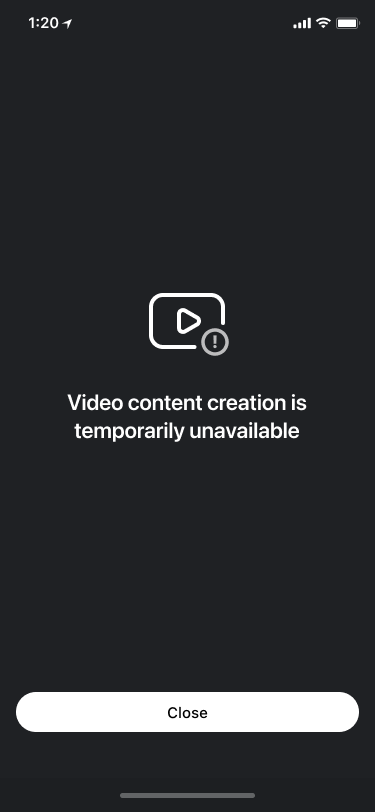
Video content unavailable screen will appear if you start Video Editor SDK with revoked or expired license.
The implementation below starts Video Editor from camera screen.
 let cameraLaunchConfig = VideoEditorLaunchConfig(
        entryPoint: .camera,
        hostController: self,
        musicTrack: nil, // Paste a music track as a track preset at the camera screen to record video with music
        animated: true
)

videoEditorModule.presentVideoEditor(with: cameraLaunchConfig)
Implement export
The Video Editor SDK can export multiple files at once. To set up export:
-
Make an ExportConfiguration object. Add one or more ExportVideoConfiguration objects to it. Each one stands for a video or audio file.
-
Call BanubaVideoEditor.export() and pass your ExportConfiguration to start.
Check the export implementation in the sample.
Read the Export integration guide for more details.