Integration Video Editor on Android
Installation
Add the Banuba repository to your project using either Groovy or Kotlin DSL:
Groovy (in project's build.gradle)
allprojects {
    repositories {
        maven {
            name = "nexus"
            url = uri("https://nexus.banuba.net/repository/maven-releases")
        }
        ...
    }
}
Kotlin (in settings.gradle.kts)
dependencyResolutionManagement {
    repositoriesMode.set(RepositoriesMode.FAIL_ON_PROJECT_REPOS)
    repositories {
        maven {
            name = "nexus"
            url = uri("https://nexus.banuba.net/repository/maven-releases")
        }
    }
}
Add Packaging Options Settings
Specify the following packaging options in your build gradle file:
android {
...
    packagingOptions {
        jniLibs {
            useLegacyPackaging = true
        }
    }
...
}
Add dependencies
Specify dependencies in the app gradle file.
    def banubaSdkVersion = '1.52.0'

    implementation "com.banuba.sdk:ffmpeg:5.3.0"
    implementation "com.banuba.sdk:camera-sdk:${banubaSdkVersion}"
    implementation "com.banuba.sdk:camera-ui-sdk:${banubaSdkVersion}"
    implementation "com.banuba.sdk:core-sdk:${banubaSdkVersion}"
    implementation "com.banuba.sdk:core-ui-sdk:${banubaSdkVersion}"
    implementation "com.banuba.sdk:ve-flow-sdk:${banubaSdkVersion}"
    implementation "com.banuba.sdk:ve-sdk:${banubaSdkVersion}"
    implementation "com.banuba.sdk:ve-ui-sdk:${banubaSdkVersion}"
    implementation "com.banuba.sdk:ve-gallery-sdk:${banubaSdkVersion}"
    implementation "com.banuba.sdk:ve-effects-sdk:${banubaSdkVersion}"
    implementation "com.banuba.sdk:effect-player-adapter:${banubaSdkVersion}"
    implementation "com.banuba.sdk:ar-cloud:${banubaSdkVersion}"
    implementation "com.banuba.sdk:ve-audio-browser-sdk:${banubaSdkVersion}"
    implementation "com.banuba.sdk:ve-export-sdk:${banubaSdkVersion}"
    implementation "com.banuba.sdk:ve-playback-sdk:${banubaSdkVersion}"
Add kotlin-parcelize plugin into plugins section of the gradle file.
plugins {
    id 'com.android.application'
    id 'kotlin-android'
    id 'kotlin-parcelize'
}
AndroidManifest Updates
Add the following to your AndroidManifest.xml:
VideoCreationActivity– orchestrates the video editor screens
<activity android:name="com.banuba.sdk.ve.flow.VideoCreationActivity"
    android:screenOrientation="portrait"
    android:theme="@style/VideoCreationTheme"
    android:windowSoftInputMode="adjustResize"
    tools:replace="android:theme" />
Important
Starting with version 1.51.0, themes are included in the SDK. For earlier versions, see theRemoved stylessection in the changelog.
- Network permissions (optional)– only required if using Giphy stickers or downloading AR effects from the cloud.
<uses-permission android:name="android.permission.ACCESS_NETWORK_STATE" />
<uses-permission android:name="android.permission.INTERNET" />
Note: You'll also need a custom VideoCreationTheme example to style the editor UI.
Koin Module Setup
- Create VideoEditorModule to initialize and customize the Video Editor SDK.
- Inside it, add SampleIntegrationKoinModule with your customizations:
class VideoEditorModule {
   ...
   private class SampleIntegrationKoinModule {
      val module = module {
         single<ArEffectsRepositoryProvider>(createdAtStart = true) {
            ArEffectsRepositoryProvider(
                arEffectsRepository = get(named("backendArEffectsRepository"))
            )
        }

        single<ContentFeatureProvider<TrackData, Fragment>>(
            named("musicTrackProvider")
        ) {
            AudioBrowserMusicProvider()
        }

        ...
      }
   }
}
- Include this module during SDK initialization:
fun initialize(applicationContext: Context) {
        startKoin {
            androidContext(applicationContext)
            allowOverride(true)

            // pass the customized Koin module that implements required dependencies. Keep order of modules
            modules(
                VeSdkKoinModule().module,
                VeExportKoinModule().module,
                VePlaybackSdkKoinModule().module,
                AudioBrowserKoinModule().module, // use this module only if you bought it
                ArCloudKoinModule().module,
                VeUiSdkKoinModule().module,
                VeFlowKoinModule().module,
                GalleryKoinModule().module,
                BanubaEffectPlayerKoinModule().module,

+                SampleIntegrationKoinModule().module,
            )
        }
    }
Launch
Initialize VideoEditorModule in your Application class.
override fun onCreate() {
        super.onCreate()
        VideoEditorModule().initialize(this)

    }
Create SDK instance of EditorSdk with your license token.
val videoEditorSDK = EditorSdk.initialize(LICENSE_TOKEN)
- Returns
nulll if the license token is invalid – verify your token - Check license activation before starting the editor.
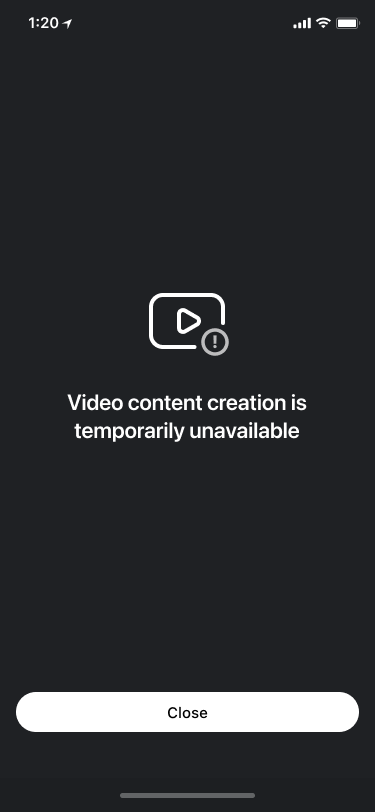
- Expired/revoked licenses show a "Video content unavailable" screen
This example launches from camera (full implementation):
 val createVideoRequest =
    registerForActivityResult(IntegrationAppExportVideoContract()) { exportResult ->
        exportResult?.let {
            //handle ExportResult object
        }
    }

val intent = VideoCreationActivity.startFromCamera(
    context = this,
    // set PiP video configuration
    pictureInPictureConfig = null,
    // setup what kind of action you want to do with VideoCreationActivity
    // setup data that will be acceptable during export flow
    additionalExportData = null,
    // set TrackData object if you open VideoCreationActivity with preselected music track
    audioTrackData = null
)
createVideoRequest.launch(intent)