Video Templates on React Native
Templates let users create stunning videos quickly and easily using predefined sets of effects, transitions, and music. All it takes to make a shareable piece is changing the placeholders. With templates, even people who are new to video editing or just lack time can make impressive content in minutes.
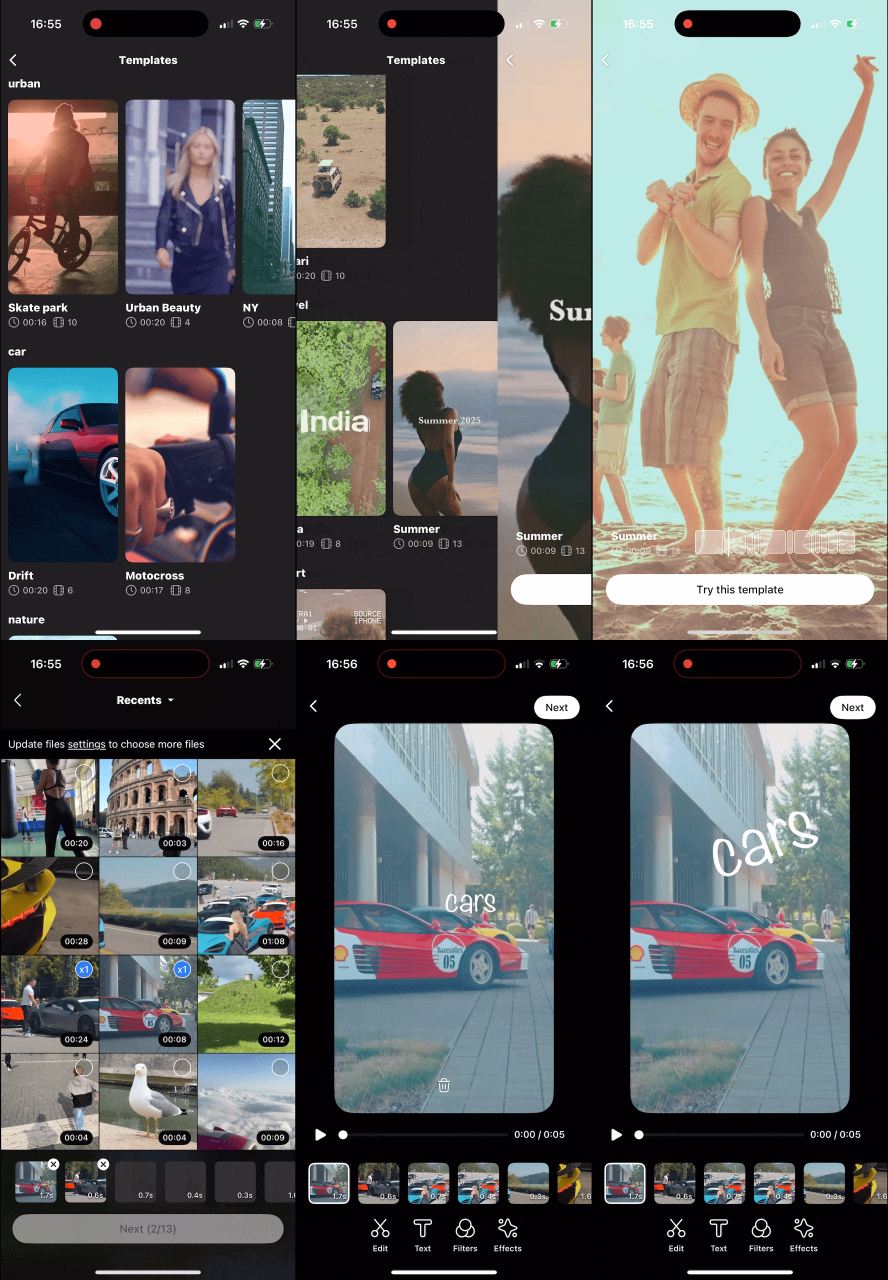
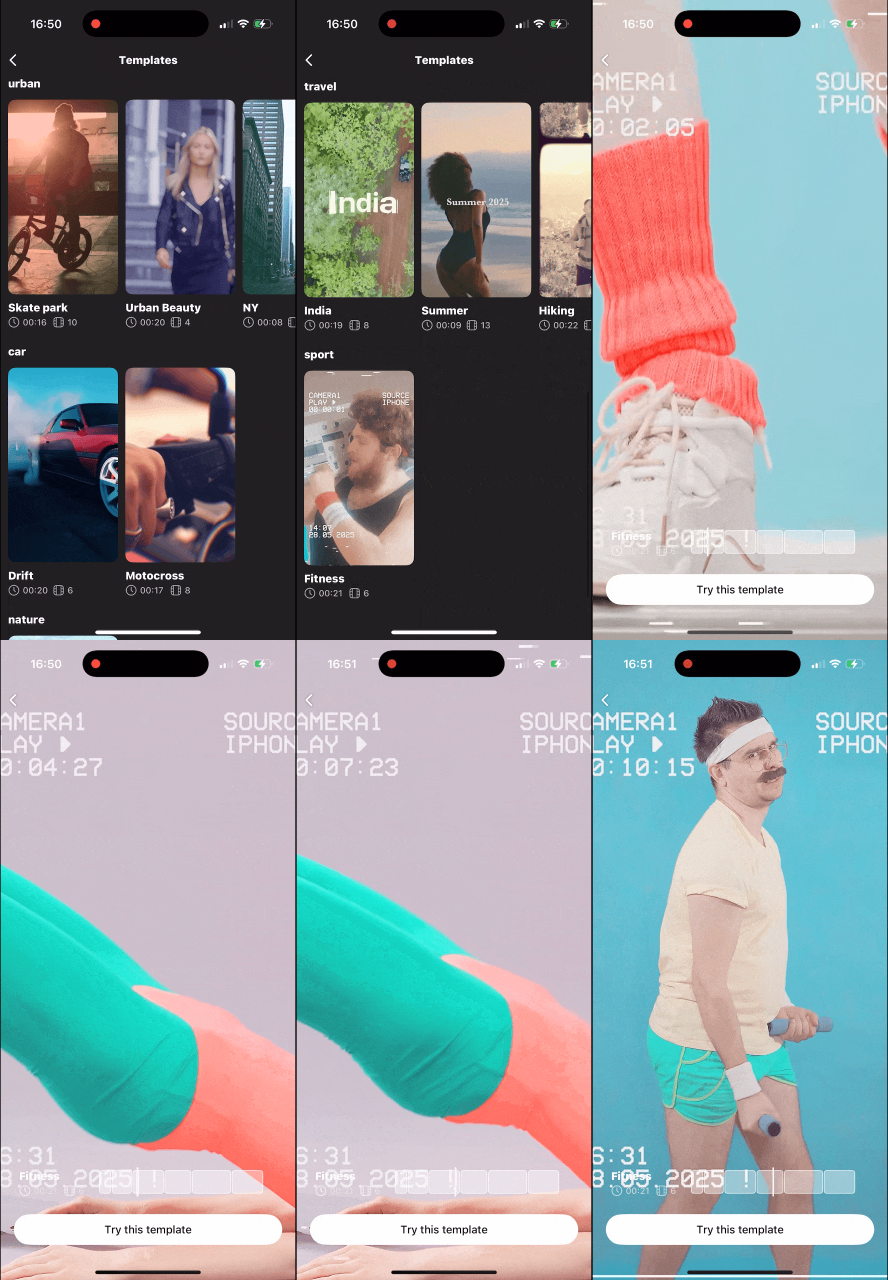
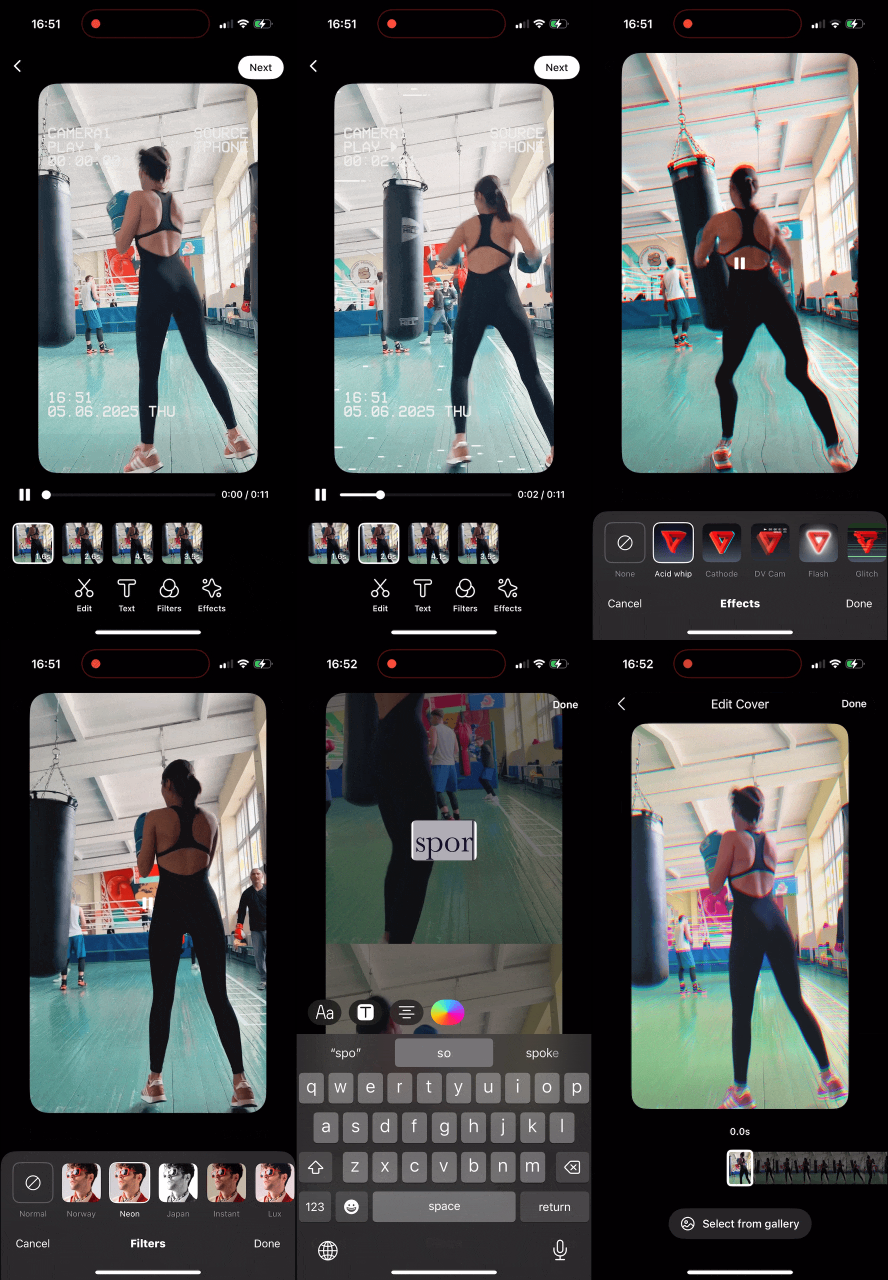
The Video Templates is not enabled by default. Contact Banuba representatives to know more.
Launch Video Templates
videoEditor.openFromTemplates(LICENSE_TOKEN, this.featuresConfig)
    .then(response => { this.handleVideoExport(response); })
    .catch(e => { this.handleSdkError(e); });
Setup Custom Templates
Use this method if you have an agreement with Banuba for the delivery of additional templates and have received the corresponding URL. By default, the SDK is delivered with predefined configuration to load Banuba templates.
Two options are available.
By URL
const featuresConfig = new FeaturesConfigBuilder()
    .setTemplatesConfig(new TemplatesConfig({ url: YOUR_URL }))
    ...
    .build();
By secret key
Requires a secret key provided by your Banuba representative.
const featuresConfig = new FeaturesConfigBuilder()
    .setTemplatesConfig(new TemplatesConfig({ secret: 'YOUR_SECRET_KEY' }))
    ...
    .build();
Template Builder
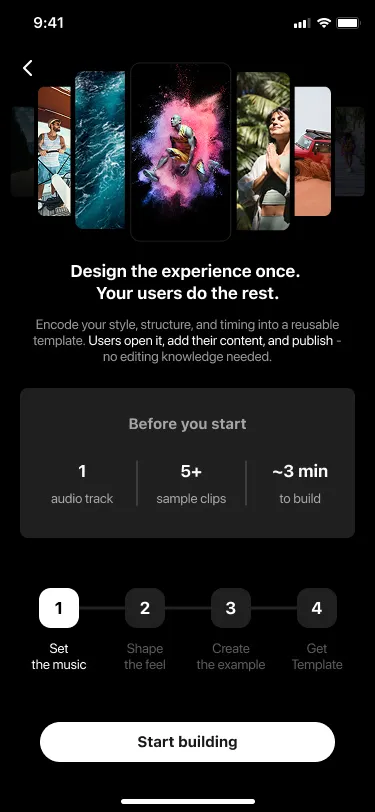
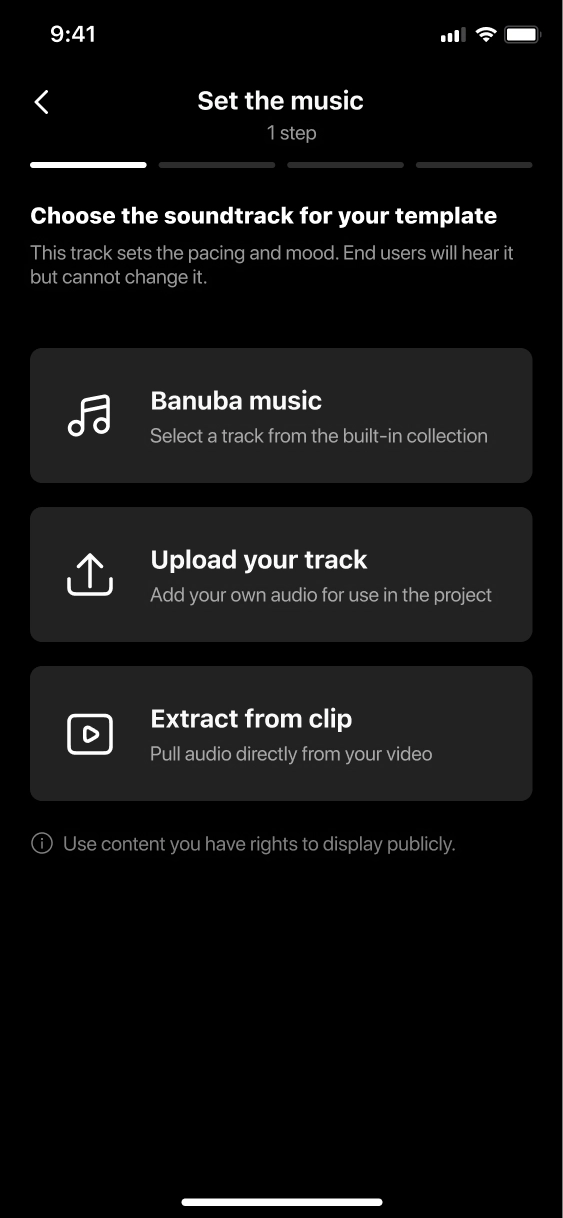
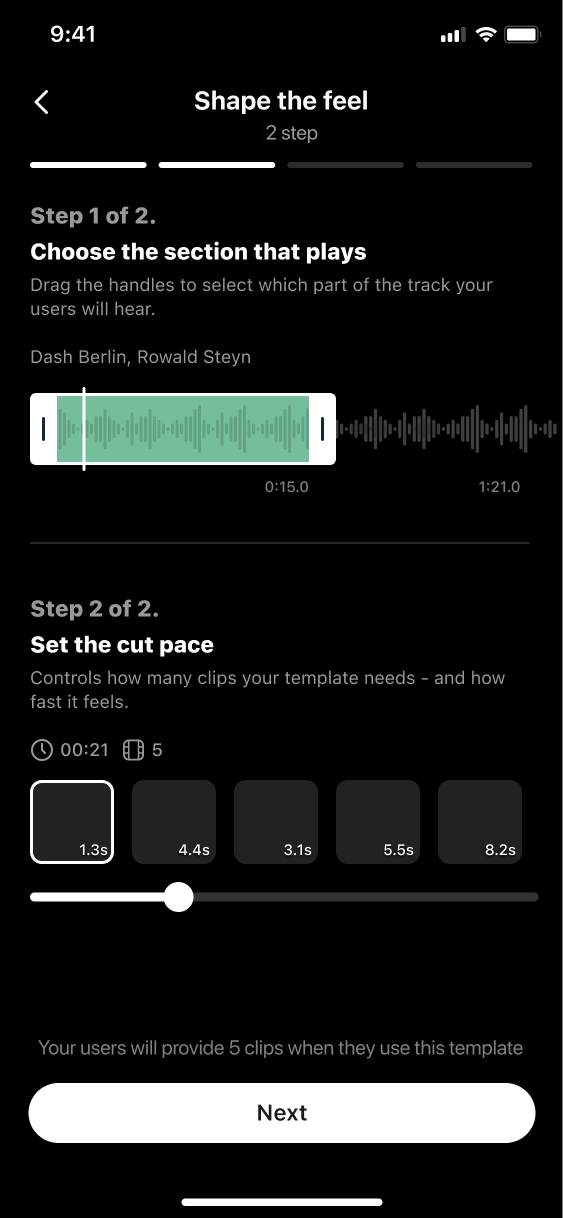
This feature is currently available on iOS only (starting from version 1.51.3).
Access requires a specific license token feature. Please contact your Banuba representative to enable it.
Template Builder allows users to create custom video templates with transitions, effects, music, and text. Others can use these as starting points by replacing the media placeholders.
Key Features
- No-Code Template Creation: Client teams build branded video templates in minutes without engineering support.
- Flexible Parameters: Define music, transitions, clip lengths, FX, text, and metadata tags.
- Fillable Media Slots: Set dedicated media placeholders for end-users to insert their own videos.
Launch Template Builder
final featuresConfig = new FeaturesConfigBuilder()
    .setTemplatesConfig(new TemplatesConfig({
        url: YOUR_URL,
        enableBuilder: true,
        termsOfUseUrl: <https://example.com/your-terms>
    }))
    ...
    .build()
Terms of Use URL
The Template Builder includes a confirmation step before a template is published. At this step, the user sees a message similar to:
«By publishing, you confirm that your content complies with the Terms of Use and does not infringe third-party rights.»
The Terms of Use link in that message leads to a page where you define the full legal terms that apply to content created and published by your team members using the Template Builder.
Setting this URL ensures that your organisation’s usage policies, IP guidelines, and content restrictions are clearly communicated to anyone who can publish templates. The link must point to a publicly accessible web page (e.g. your company’s Terms of Use or a dedicated policy document) and the URL must be valid and reachable.