# Using video calls with the Banuba SDK
[View as Markdown](https://docs.banuba.com/far-sdk/tutorials/unity/videocall.md)[Open in ChatGPT](https://chatgpt.com/?q=Read%20https%3A%2F%2Fdocs.banuba.com%2Ffar-sdk%2Ftutorials%2Funity%2Fvideocall.md%20\(Using%20video%20calls%20with%20the%20Banuba%20SDK\)%20and%20help%20me%20with%20it%20in%20my%20Banuba%20Face%20AR%20SDK%20project.)[Open in Claude](https://claude.ai/new?q=Read%20https%3A%2F%2Fdocs.banuba.com%2Ffar-sdk%2Ftutorials%2Funity%2Fvideocall.md%20\(Using%20video%20calls%20with%20the%20Banuba%20SDK\)%20and%20help%20me%20with%20it%20in%20my%20Banuba%20Face%20AR%20SDK%20project.)Install tools
In our example, **AgoraRTC SDK** is used for video streaming. But integration can be done based on any video streaming library. You can read more about Agora [here](https://www.agora.io/en/unity/).
[Example of using video calling with the Banuba SDK](https://github.com/Banuba/videocall-unity)
## How To Run[](#how-to-run "Direct link to How To Run")
1. Get the client token for Banuba SDK. Please fill in our form on banuba.com website, or contact us via .
2. Open the the project.
3. Download and import the [Agora SDK package from Unity Asset Store](https://assetstore.unity.com/packages/tools/video/agora-video-sdk-for-unity-134502) with Unity Package Manager. If it is not available, contact [Agora Support](https://www.agora.io/en/customer-support/)
4. Download and import the [BanubaSDK-import.unitypackage](https://github.com/Banuba/quickstart-unity/releases)
5. Visit [agora.io](https://www.agora.io) to sign up and get a token, as well as an app and channel ID.
6. Find the `Assets/Resources/BanubaClientToken.txt` and past your client token here.
7. Open the scene `VideoCallDemo/demo/MainScene.scene.`
8. Find the the VideoCanvas object in the scene and set AppID, Token, and your channel name in the properties of the DemoVideoCall script.
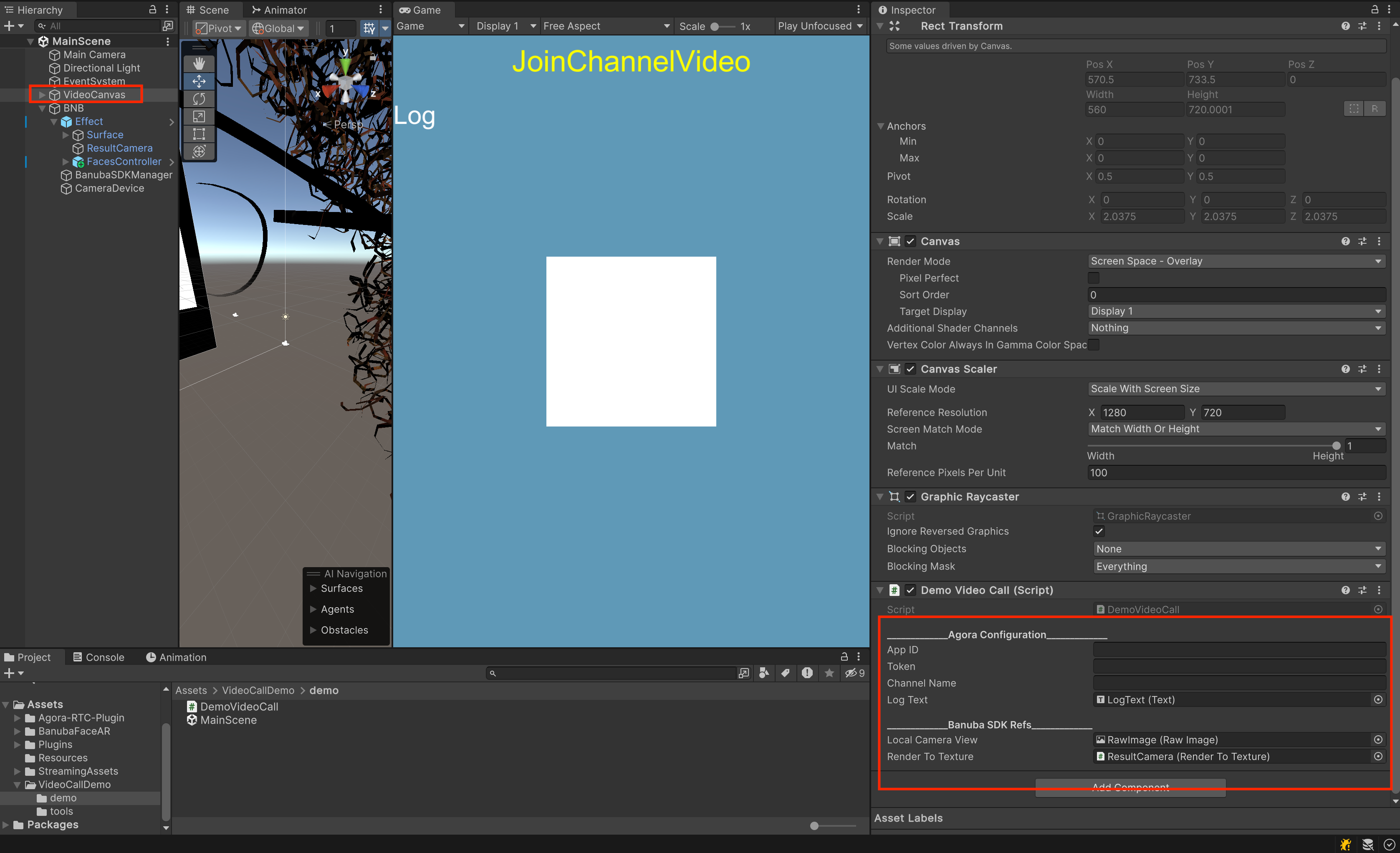
8. Run the project in the Editor.
## How It Works[](#how-it-works "Direct link to How It Works")
1. Initialize `AgoraSDK` in `Start` method with methods below:
Assets/VideoCallDemo/demo/DemoVideoCall.cs
```
loading...
```

2. Initialize **BanubaSDK**. The MainScene.scene contains [BanubaSDKManager](/far-sdk/tutorials/unity/overview.md#banubasdkmanager) reference from `BanubaSDK-import.unitypackage`
3. Render Camera and any AR Effect with the `BNB.RenderToTexture.cs` to the RenderTexture
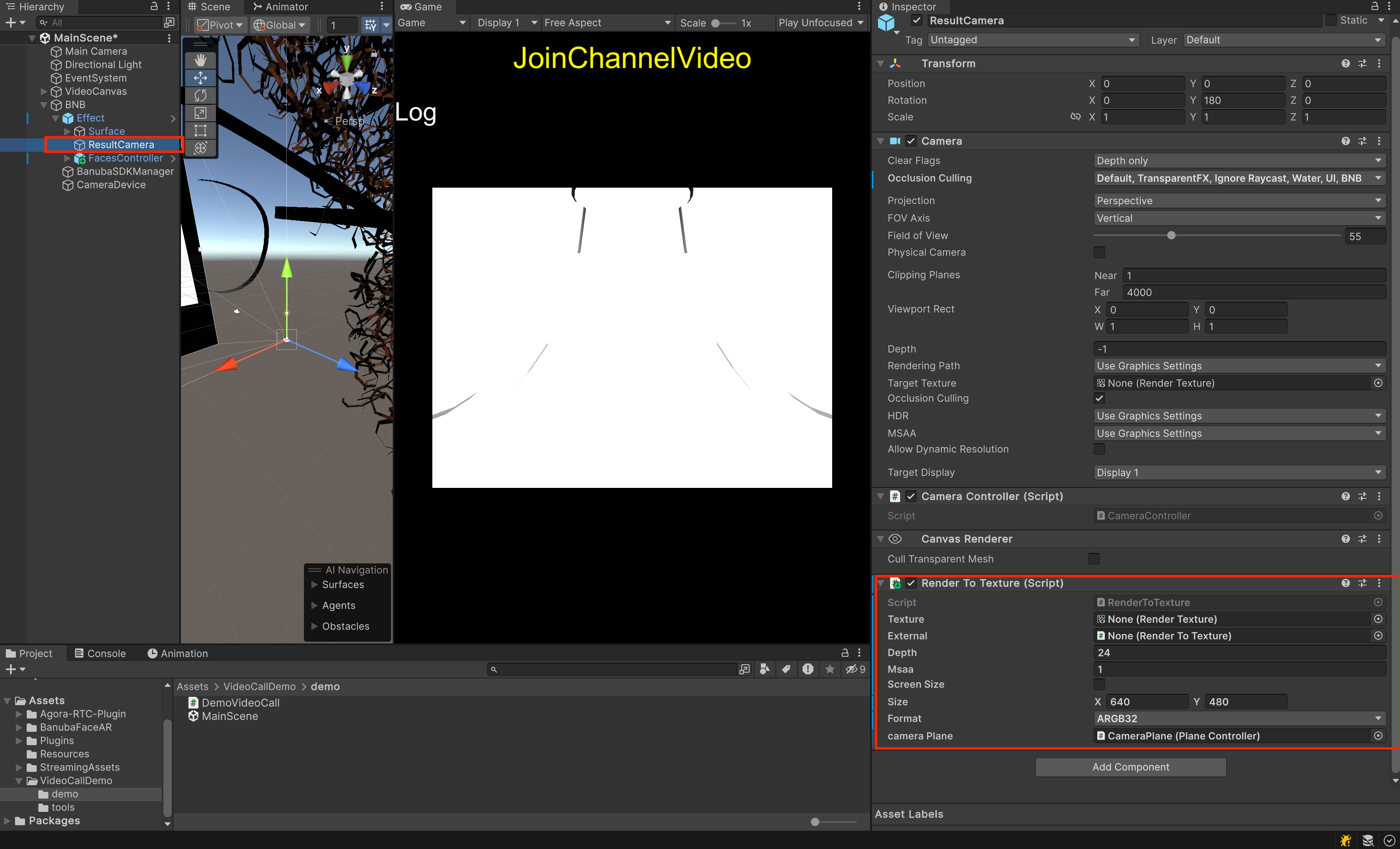
3. Send Video Frames in `Update` method
Assets/VideoCallDemo/demo/DemoVideoCall.cs
```
loading...
```
